PDF Reader - Smart Viewer
- 4.0
- Rating
- 1.00M
- Installs
- Free
- Price
 Analysis by App-foxy
PDF Reader - Smart Viewer is the kind of productivity app I reach for when a PDF needs more than a quick glance. It is built around reading, marking up, signing, and converting documents, so it aims to cover several jobs that people often split between separate tools. After using it as an everyday document viewer, I found its biggest appeal in that all-in-one approach: I can open a file, inspect it, add notes, prepare a signature, and continue with the same document instead of constantly moving between apps.
That broad purpose also makes the app worth judging from an inclusive point of view. A PDF can be difficult to use when text is dense, pages are poorly structured, or the reader needs to work one-handed on a phone. PDF Reader - Smart Viewer does not magically solve every problem built into a document, but its focus on viewing and editing makes it more practical than a basic file opener. My experience is that it is most useful for people who want a straightforward mobile workspace, especially when their PDF tasks change from reading to editing without warning.
How comfortably the app handles reading and navigation
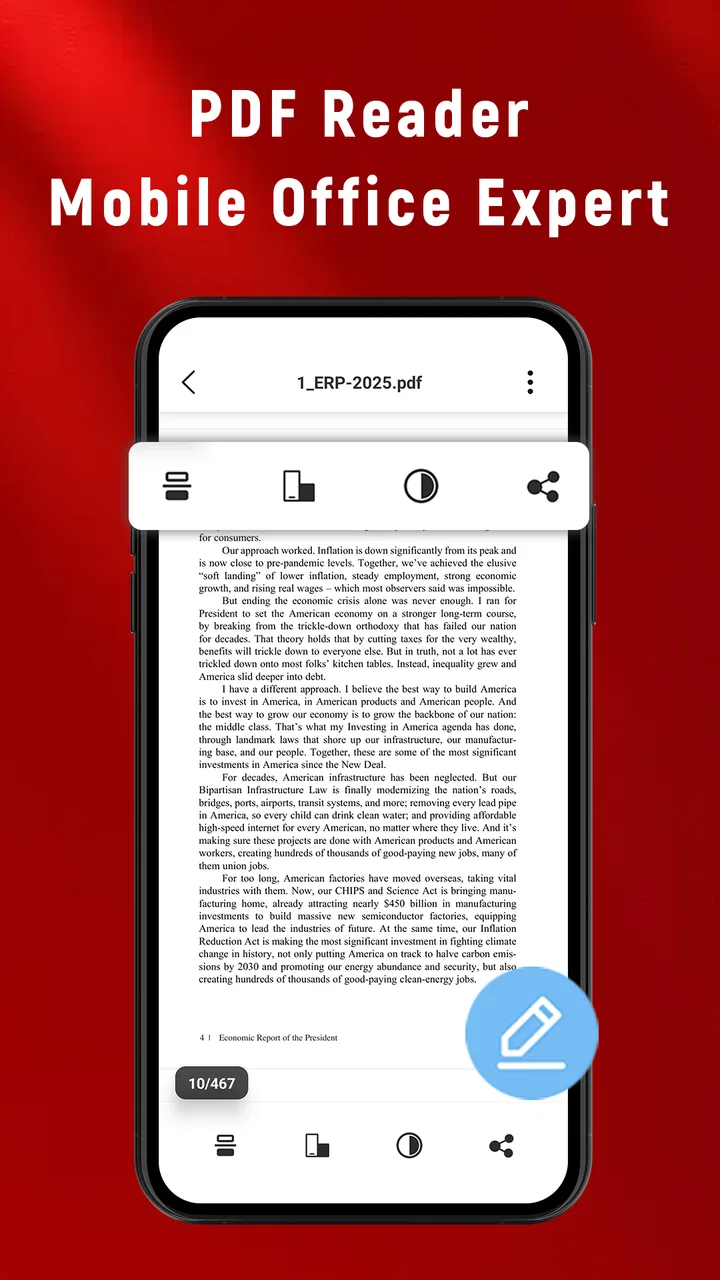
The first thing I noticed is that the app makes sense as a dedicated PDF reader, rather than treating documents as an afterthought inside a file manager. That matters when I am switching between several pages, checking a form, or returning to a section after making a note. A focused viewer reduces the mental effort of finding the right action because the document itself stays at the center of the experience.
You May Also Like

 Blood Strike: 2.5 Anniversary
Blood Strike’s Loadouts Turn Every Drop Into a Tactical Gamble
A close look at Blood Strike’s custom loadouts: how fast access to signature weapons reshapes its battle royale rhythm, rewards preparation, and narrows the gap between fights.

 Pandora - Music & Podcasts
Pandora’s Music Is Easy to Start, but Harder to Recover
Pandora’s strength is its low-effort path from a seed to a station. Its weak spot is how much confidence it asks you to place in connection, setup, and quiet recovery.

 8 Ball Pool
 Is Built on Rivalries, Rematches, and Routine
A close look at the rivalries, rematches, shared routines, and unanswered safety questions that turn a quick pool match into a persistent mobile community.

 Samsung Music
’s Quiet Strength Is Playing What You Already Own
Its reach comes less from spectacle than from dependable access to a personal library. That simplicity is both the app’s strongest retention engine and its ceiling.

 AccuWeather: Weather Radar
AccuWeather Review: A Quick, Clear Forecast for Everyday Decisions
For everyday plans, the best forecast is the one you can understand quickly. AccuWeather makes rain timing, radar, and local conditions easy to act on, with a few trade-offs.

 Hill Climb Racing
Why Hill Climb Racing Still Turns Crashes Into One More Run
A tiny car, a bumpy hill and one more upgrade: Hill Climb Racing keeps resurfacing because its simple chaos makes every near-miss feel personal.
More From Our News Desk



For ordinary reading, the most important advantage is having the same place for viewing and annotation. I do not need to read a document in one application and then reopen it elsewhere to highlight a passage or add a reminder. That is a small change, but it helps when I am reviewing instructions, studying a handout, or checking a work document while travelling.
Navigation feels most manageable when the PDF is already well prepared. Clean digital documents are easier to scan than pages made from photographs, unusual layouts, or tiny text. This is an important distinction: the app can provide a useful reading surface, but it cannot turn every badly designed document into an accessible one. If the original file uses low contrast or places text inside complicated graphics, I still have to work harder.
I also see value in the combination of reading and conversion. A person who receives a PDF as an attachment may need to change its format before sharing it with someone else. Keeping that step inside the same productivity tool can reduce interruptions. The trade-off is that conversion is not automatically a perfect replacement for the original. Complex tables, forms, columns, and decorative layouts can behave differently after conversion, so I would always inspect the result before sending it on.
The app’s current version is 1.2.5, and it runs on Android 8.0 or later. That gives it a useful reach for people who do not replace their phone frequently. In practical terms, this is helpful for households or workplaces where newer hardware is not guaranteed. Still, a compatible operating system does not mean every screen will feel equally comfortable: a small display, older hardware, or limited storage can make document work less pleasant than it is on a larger device.
Reading is easier when the workflow stays predictable
One of my favourite aspects of this kind of tool is the reduced number of handoffs. I can start by reading, pause to annotate, and then sign or convert the same file when the task requires it. That continuity is especially helpful for users who find repeated app changes tiring or confusing. It also makes the app easier to recommend to someone who wants one familiar workspace rather than a collection of narrowly focused utilities.
At the same time, I would not mistake an all-in-one design for a full desktop publishing environment. If I need highly precise page composition, advanced document restructuring, or detailed control over every element, a desktop PDF suite remains the stronger choice. PDF Reader - Smart Viewer is better suited to practical mobile actions than to elaborate document production.
Motor and sensory considerations in daily use
Touch-based document editing can be convenient, but it also asks for accuracy. Reading a page is usually less demanding than selecting a precise passage, placing an annotation, or signing in a particular area. For users with limited dexterity, hand tremors, joint pain, or difficulty maintaining a steady touch, those editing tasks may require patience. I would test the app with a non-critical document first, especially before signing anything important.
The app’s value for motor accessibility comes mainly from reducing the number of separate workflows. If I can read, mark, sign, and convert within one tool, I spend less time opening menus in different applications and moving files between them. That can make a real difference for someone who tires easily. However, fewer app changes do not remove the need for careful touch interaction inside the document itself.
Signing is a good example of this balance. A mobile signature can be useful when I am away from a computer and need to return a form quickly. Yet signing on a phone may feel cramped, particularly if the signature field is small or the document is zoomed out. I would rotate the device or enlarge the page before attempting it, then check the placement visually. The app is convenient here, but convenience should not replace reviewing the final file.
People with visual sensitivities may also want to think about the type of PDF they receive. A clean page with generous spacing is easier to handle than a crowded scan. Annotation can help by drawing attention to important sections, but excessive marks can make a document harder to read rather than easier. My practical approach is to use only the markings that support the next action: a short highlight for a deadline, a note beside a question, or a signature placed after checking the surrounding text.
For readers with low vision, the phone’s own display settings and zoom habits may be just as important as the app. I would enlarge the page before trying to select small text and avoid judging readability from a thumbnail view. The app is a useful container for the document, but the source PDF still controls much of the visual experience. A scanned page with faint text remains a challenge even inside a capable viewer.
Users who are sensitive to clutter may appreciate the focused purpose of the interface, but an app with several actions can still feel busy when a document is open. I find it easier to handle one task at a time: read first, annotate second, sign last. That sequence reduces accidental edits and keeps the document’s visual structure understandable.
A realistic everyday scenario
Imagine receiving a school permission form or a workplace document while waiting for a bus. I would open it in PDF Reader - Smart Viewer, read the key sections, add a note beside anything I need to ask about, and complete the signature only after checking the page at a comfortable zoom. If the recipient needs a different format, I could try the conversion step before sharing it. This is where the app feels genuinely useful: the task is not just “open a PDF,” but move a document from arrival to action without needing a laptop.
For someone who has difficulty switching attention between applications, this single-workspace process may be more comfortable. For someone who finds touch editing difficult, the same scenario could be frustrating if the form has tiny fields. In that case, I would use the app for reading and notes, then complete the precise editing on a larger screen or with a more suitable input method.
Situational access beyond the desk
PDF Reader - Smart Viewer makes the most sense when I am away from a full computer. A phone is already available in many everyday situations, and a document tool that combines several actions can be useful during commuting, appointments, classes, or quick administrative tasks. The free price also lowers the barrier to trying it, which is important for people who only occasionally need to sign or convert a PDF.
The app is rated for Everyone, so it fits general household use rather than being aimed at a narrow professional audience. I can see it working for students reviewing course material, families handling forms, freelancers returning signed documents, and workers checking instructions at different locations. Its broad usefulness comes from the variety of PDF tasks, not from one specialized feature.
Its adoption also suggests that it has found an audience: the app has passed one hundred thousand installs, with an average rating of four out of five from roughly seven hundred ratings. I treat those figures as a sign of practical interest rather than proof that every workflow will suit every person. Ratings cannot show how comfortable the app is for a particular visual, motor, or cognitive need, so personal testing still matters.
Compared with a basic system viewer, this app is more appealing when I need to do something with the document. A simple viewer may be enough for a one-time read, but it becomes limiting when I need to annotate or sign. Compared with a specialized scanner, office editor, or desktop PDF suite, PDF Reader - Smart Viewer is more convenient as a compact mobile toolkit, though it may not offer the same depth for complex professional work.
That comparison helps clarify who should choose it. I would recommend it to someone who wants a free way to manage common PDF tasks on a compatible Android phone. I would be more cautious for a user who depends on highly advanced document restructuring, exact layout preservation during conversion, or a large-screen editing environment. In those cases, the app can still be a companion, but it should not be the only tool.
Useful habits for more comfortable access
I would begin with a low-stakes file and try the complete workflow before using the app for an important contract or official form. Open the document, move through several pages, add a harmless test annotation, and inspect how the saved result looks. This reveals whether the combination of the phone’s screen and the document’s design works for you before there is any pressure.
For people who tire from prolonged screen use, breaking the process into stages is more comfortable than trying to read, edit, and sign continuously. I would read the document first, pause, then return for annotations. This also reduces mistakes because I am not trying to understand a paragraph while simultaneously positioning a mark over it.
Another useful habit is to keep the original document untouched until the final version has been checked. Conversion and signing are actions where a quick visual review is worthwhile. I would compare the important pages, confirm that annotations appear where intended, and make sure the signature is not covering nearby text. This is not a criticism unique to the app; it is simply the safest way to work with mobile documents.
Remaining barriers and honest limitations
The biggest limitation is that the app cannot control the quality of every PDF. A document may be scanned, crowded, poorly contrasted, or created with a layout that does not adapt well to a phone. Reading such files can remain difficult even when the viewer itself is easy to open. People who rely on carefully structured digital text should pay attention to the source of their documents as much as the reader they use.
Touch precision is another barrier. Signing and placing annotations are practical features, but they are not automatically effortless for every hand. A larger device may be preferable for detailed forms, while a stylus or external input method could help some users if supported by their broader setup. I would not assume that a phone-based workflow is the best choice simply because it is available.
There is also a trade-off between breadth and depth. Combining reading, annotation, signing, and conversion is convenient, but users who need advanced control may eventually outgrow a compact mobile app. A desktop alternative is usually better for long editing sessions, complicated layouts, or work where exact output matters more than speed. PDF Reader - Smart Viewer earns its place as a practical mobile option, not as a universal replacement for every PDF tool.
People who prefer a very minimal reader may find the extra document actions unnecessary. If I only open PDFs to read a page once, a simpler viewer may feel less busy and may be all I need. This app becomes more convincing when the document requires follow-up work. Its strongest case is the user who regularly moves between reading and completing a task.
I would also avoid treating the app’s Everyone rating as a guarantee of effortless access for every individual. Age suitability and accessibility are different questions. The app is suitable for general audiences, but comfort still depends on the phone, the document, the user’s abilities, and the complexity of the action being attempted.
An inclusive verdict for mobile PDF work
After looking at the app through readability, motor effort, sensory comfort, and real-world situations, I see PDF Reader - Smart Viewer as a useful middle ground. It gives ordinary users more than a basic reader without demanding a full desktop setup. The ability to read, annotate, sign, and convert in one productivity app is genuinely helpful when a document arrives unexpectedly and needs action straight away.
My recommendation is strongest for students, families, freelancers, and mobile workers who want a free tool for common PDF jobs. The developer, Omareyah Team, has positioned it around a clear everyday need, and its 4.0 average from hundreds of ratings shows a generally positive reception. It is also available to people using Android 8.0 or newer, which makes it relevant beyond only the newest phones.
I would recommend a careful trial rather than an automatic switch for users with specific accessibility requirements. Test a real document with small text, try an annotation, and see whether signing feels precise enough. If the experience is comfortable, the app can simplify a surprisingly large number of small tasks. If it is not, a larger-screen editor or a simpler reader may be the kinder choice.
My final view is that PDF Reader - Smart Viewer is best when convenience and flexibility matter more than advanced control. It does not remove the barriers created by difficult PDFs or small touchscreens, but it brings several useful steps together in a way that can make mobile document work less fragmented. For a free Android app with a broad, everyday purpose, that is a worthwhile strength, provided I remember to check important files carefully before sharing or signing them.
FAQs for PDF Reader - Smart Viewer
01What features does PDF Reader - Smart Viewer offer?
PDF Reader - Smart Viewer provides a comprehensive suite of features designed to enhance your document viewing experience. It supports annotation, highlighting, and note-taking directly on PDFs. Users can also merge, split, and organize documents easily. Additionally, it offers cloud integration for seamless access across devices, along with advanced search functionalities.
02Is PDF Reader - Smart Viewer available for both Android and iOS devices?
Yes, PDF Reader - Smart Viewer is available for both Android and iOS platforms. It provides a consistent and user-friendly interface across both operating systems, ensuring that users can enjoy a seamless experience whether they are using a smartphone or tablet, regardless of the platform.
03Does PDF Reader - Smart Viewer support offline access?
Absolutely! PDF Reader - Smart Viewer allows users to access and read PDFs offline. This is particularly useful for those who need to view documents without an internet connection. Simply download the files to your device, and you can read or annotate them anytime, anywhere without needing to be online.
04Are there any subscription fees for using PDF Reader - Smart Viewer?
PDF Reader - Smart Viewer offers a free version with basic functionalities. However, to unlock premium features like advanced editing tools, cloud integration, and ad-free usage, users may need to purchase a subscription. Different plans are available to cater to various needs, offering flexibility in how you choose to use the app.
05How does PDF Reader - Smart Viewer handle document security?
PDF Reader - Smart Viewer prioritizes your document security by offering encryption and password protection features. Users can secure sensitive documents with passwords, ensuring unauthorized access is prevented. Additionally, the app adheres to industry-standard security protocols to safeguard user data and privacy.
Pros
- User-friendly interface for easy navigation.
- Supports multiple file formats seamlessly.
- Fast loading times for large documents.
- Advanced annotation tools available.
- Offline mode for on-the-go access.
Cons
- Occasional ads in the free version.
- Limited cloud storage options.
- No night mode for reading comfort.
- In-app purchases can be pricey.
- Some features require internet connection.

PDF Reader - Smart Viewer
Gallery